User Guide › App-only pricing

Topic 4 of 6

App-only pricing

Reward customers for shopping inside your app with exclusive prices they cannot get on your website. It is one of the strongest reasons for shoppers to download your app and keep coming back.
  1. 1

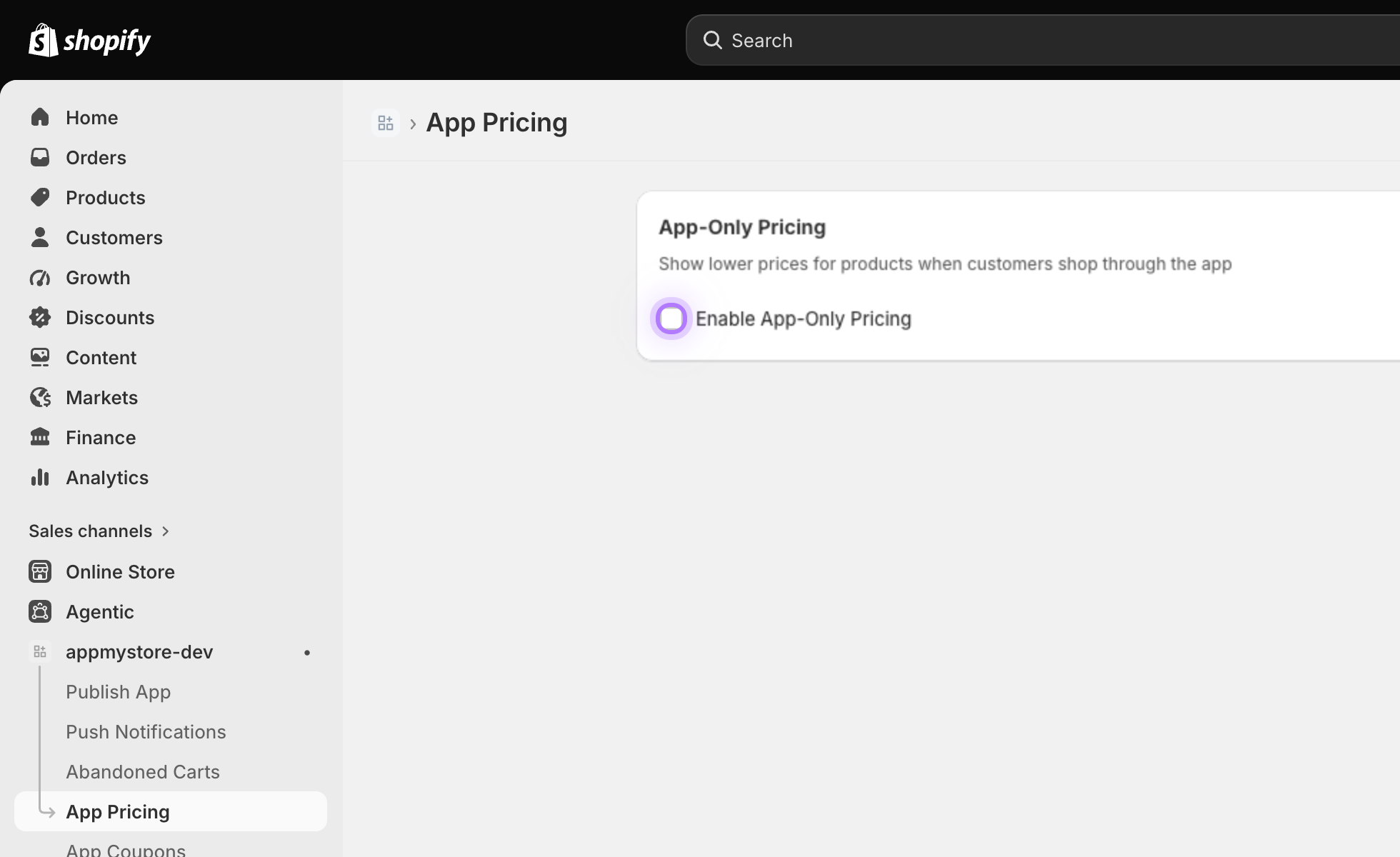
    Enable App-Only Pricing

    Open App Pricing and turn on the toggle. The rest of the settings appear as soon as it is enabled.
    Enable app-only pricing toggle
  2. 2

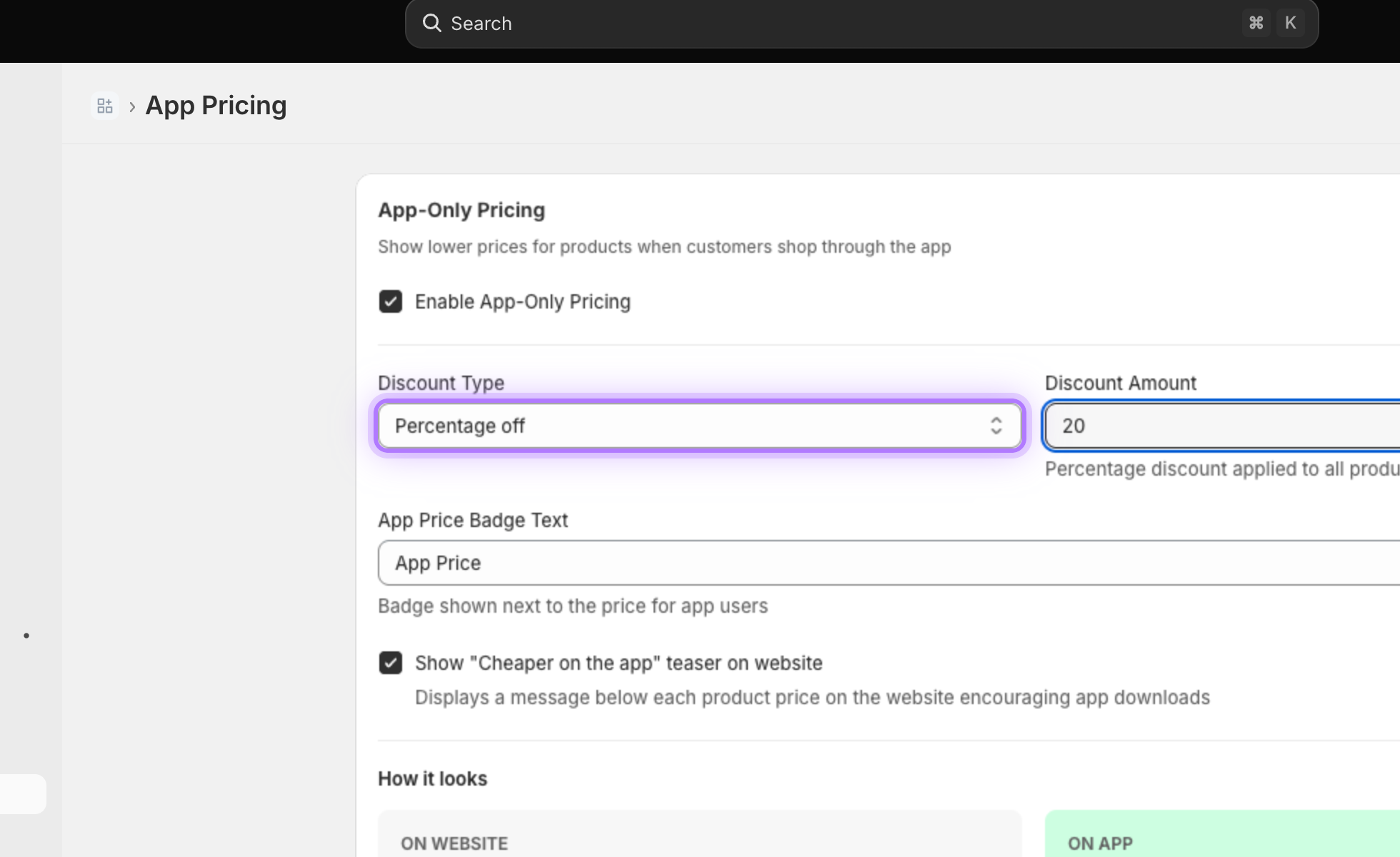
    Choose a discount type

    Pick how the discount works: a percentage off, or a fixed amount off every product.
    Discount type selector
  3. 3

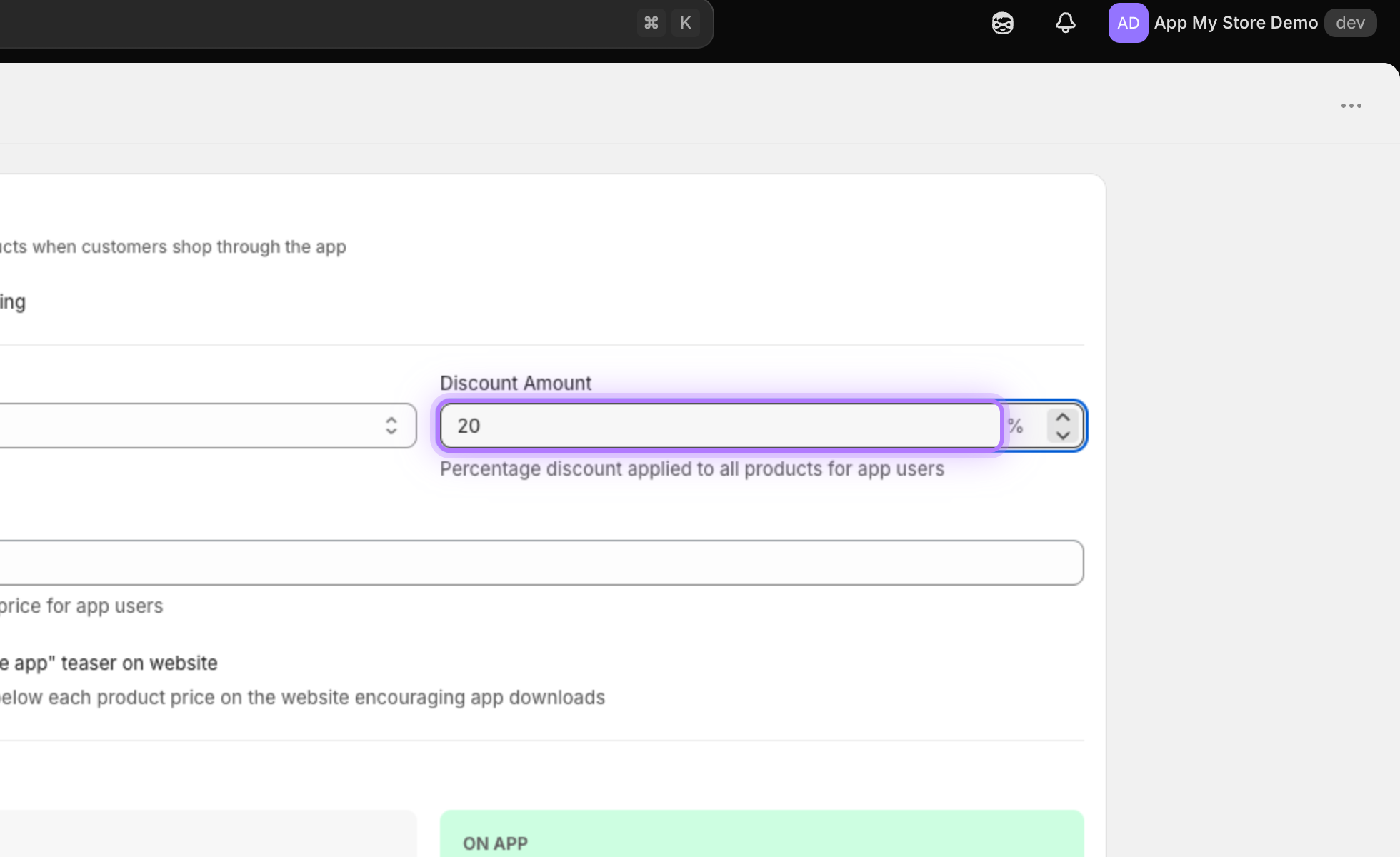
    Set the discount amount

    Enter the value of the discount. For example, 20 for twenty percent off for app shoppers.
    Discount amount field
  4. 4

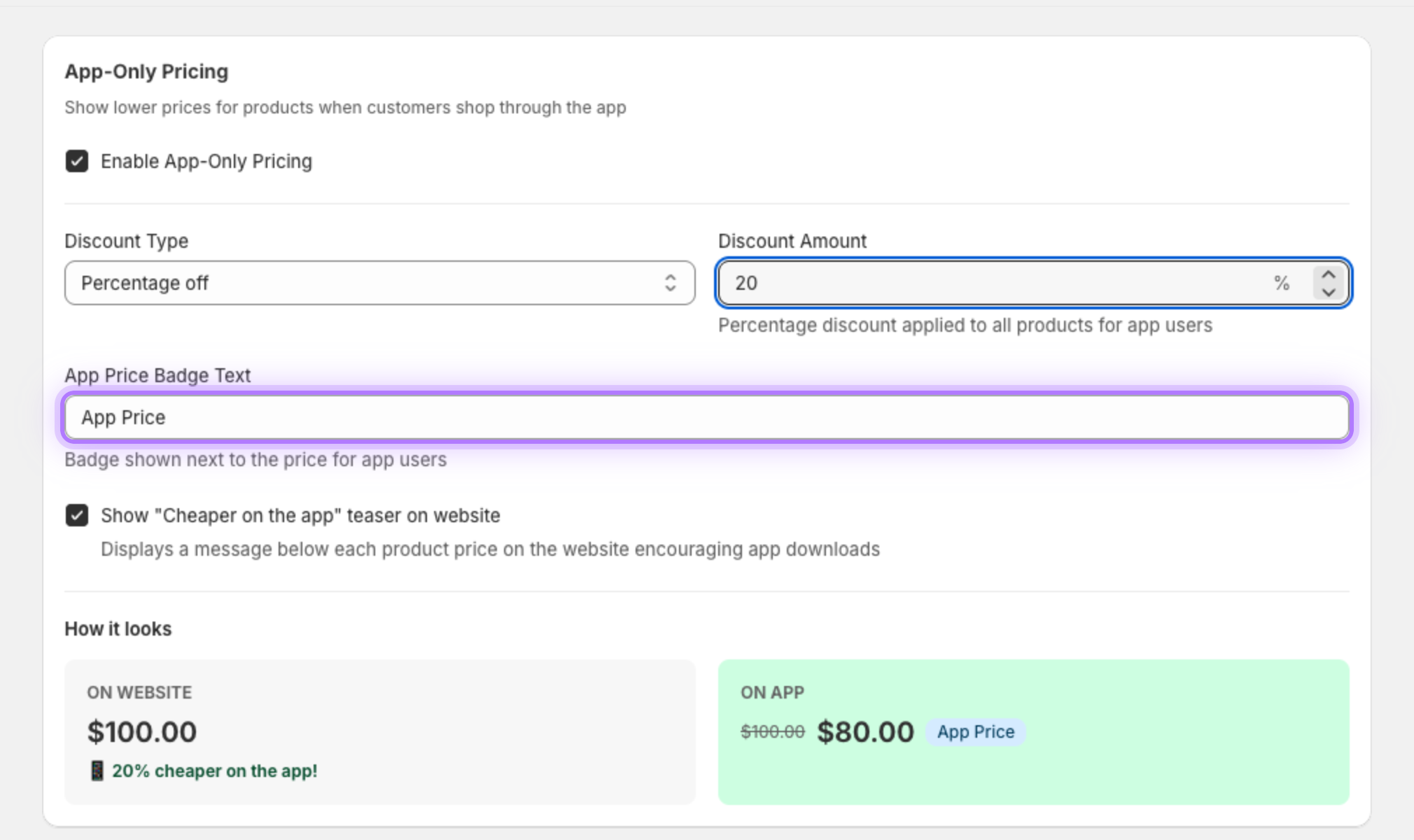
    Customize the badge

    Edit the badge shown next to the app price, for example App Price or App Exclusive, so customers understand the deal.
    Badge text field
  5. 5

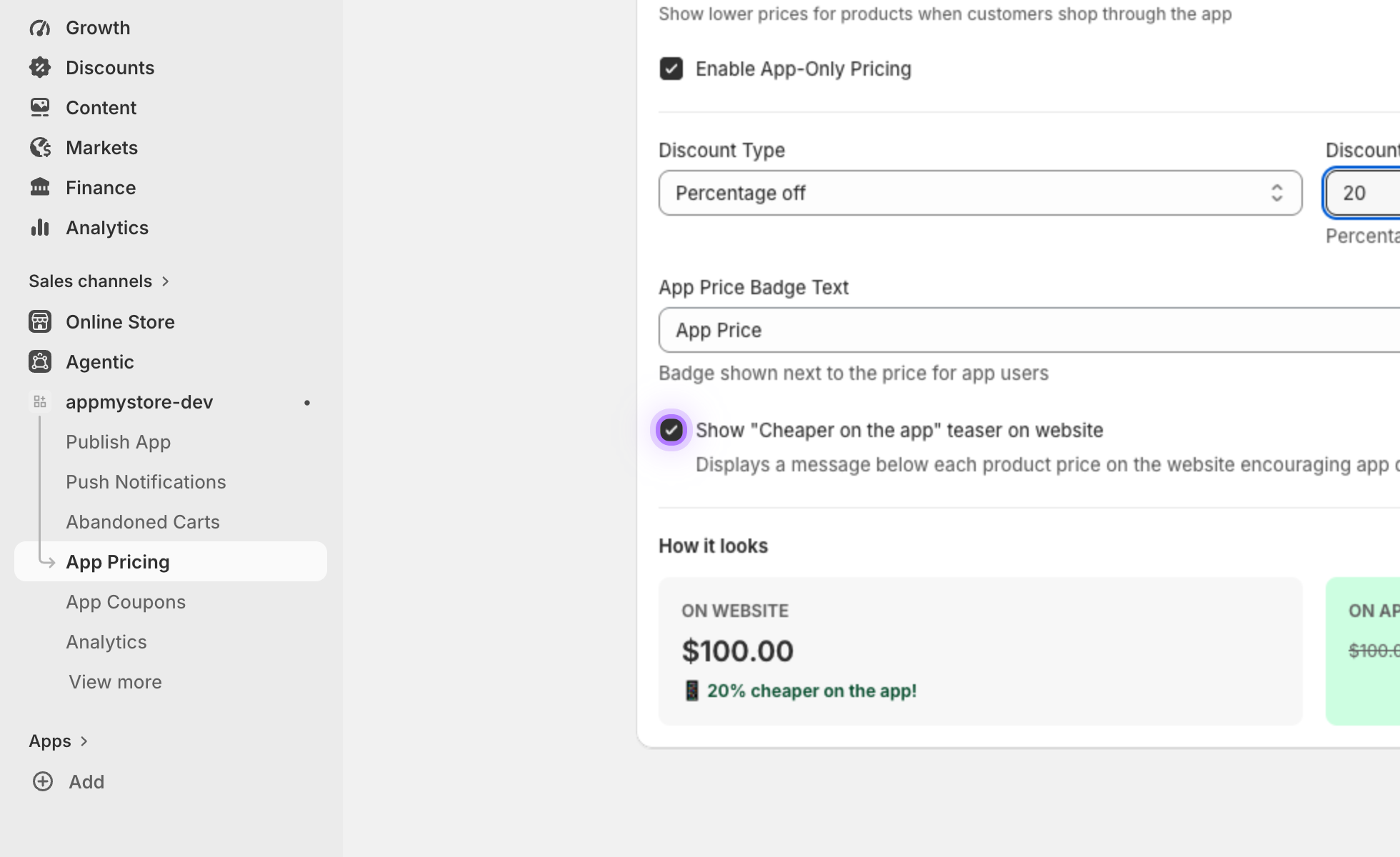
    Add a teaser (optional)

    Show website shoppers exactly what they would save by using the app, nudging them to download it.
    Teaser toggle
  6. 6

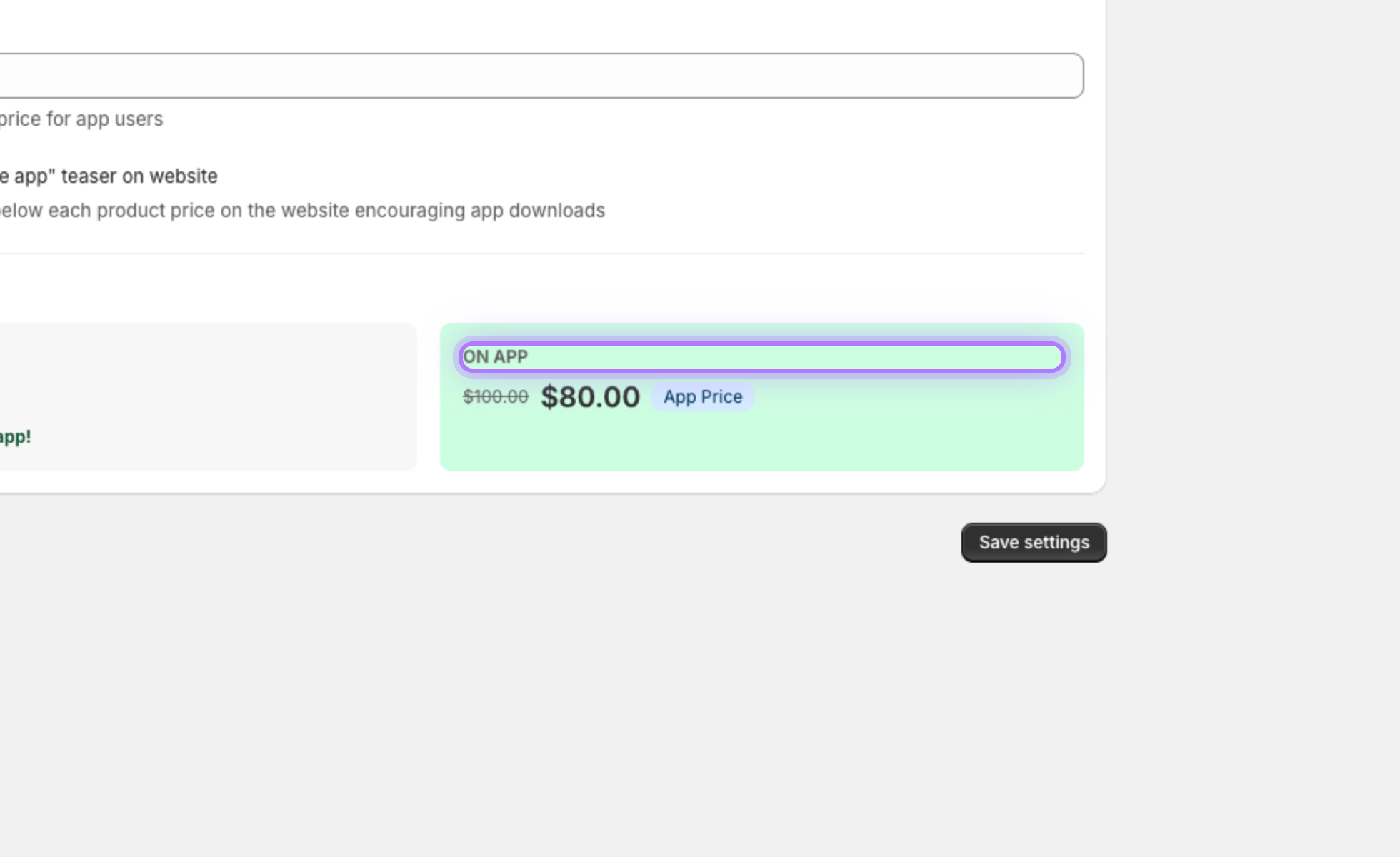
    Check the live preview

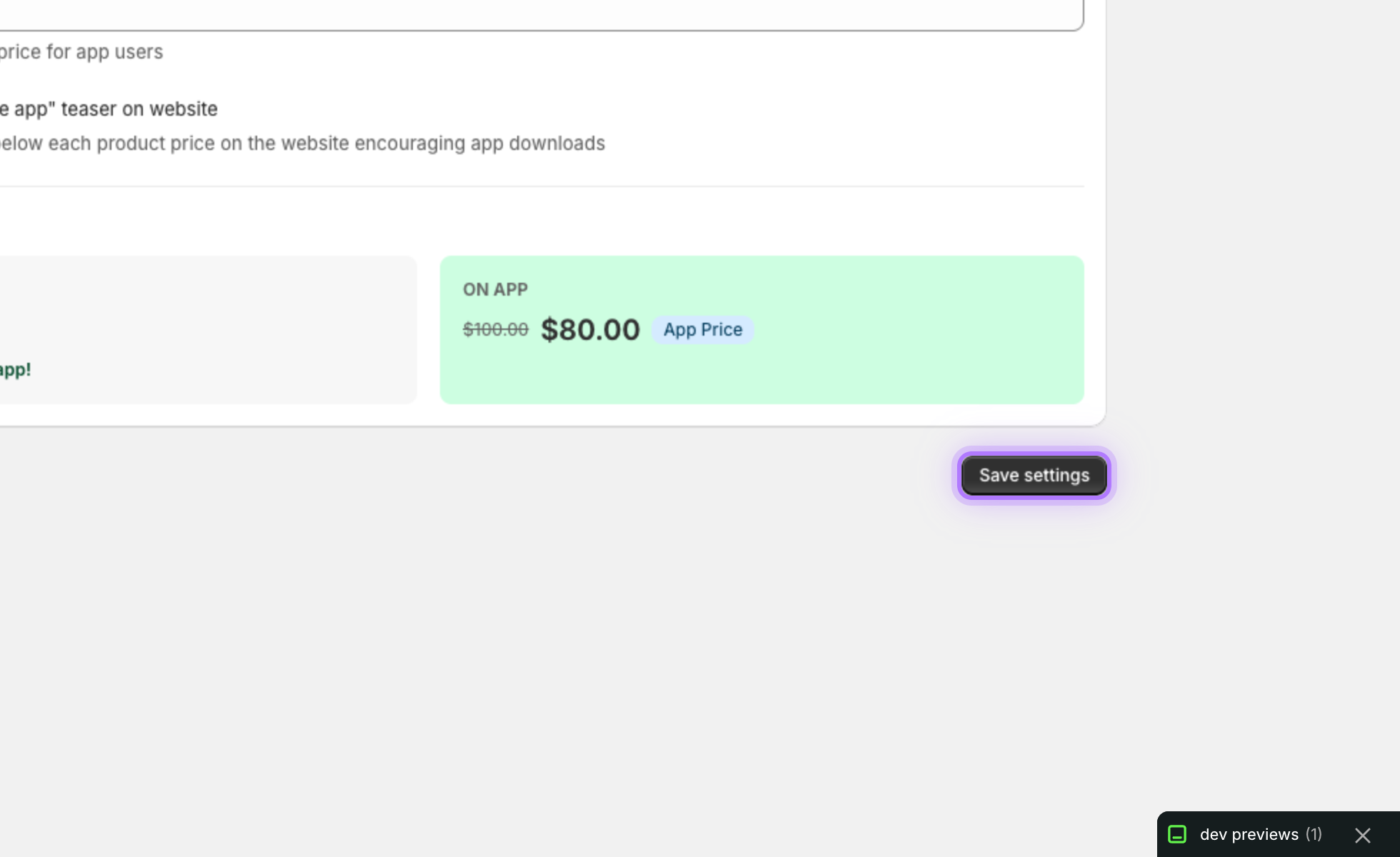
    The On App versus On Website preview updates live, so customers see the savings side by side and the difference is impossible to miss.
    Live price preview
  7. 7

    Save your settings

    When you are happy, click Save settings and your app-only prices go live across your store instantly.
    Save settings button
App My Store

Want to hear more details?

Fill out the form and we will get back to you as soon as possible.

    By submitting this form you agree that we process the details you provide in order to respond to your enquiry. See our Privacy Policy.