User Guide › App coupons

Topic 5 of 6

App coupons

Create exclusive discount codes that work only inside your mobile app. App coupons give customers a reward no one else can get, and a real reason to shop in the app.
  1. 1

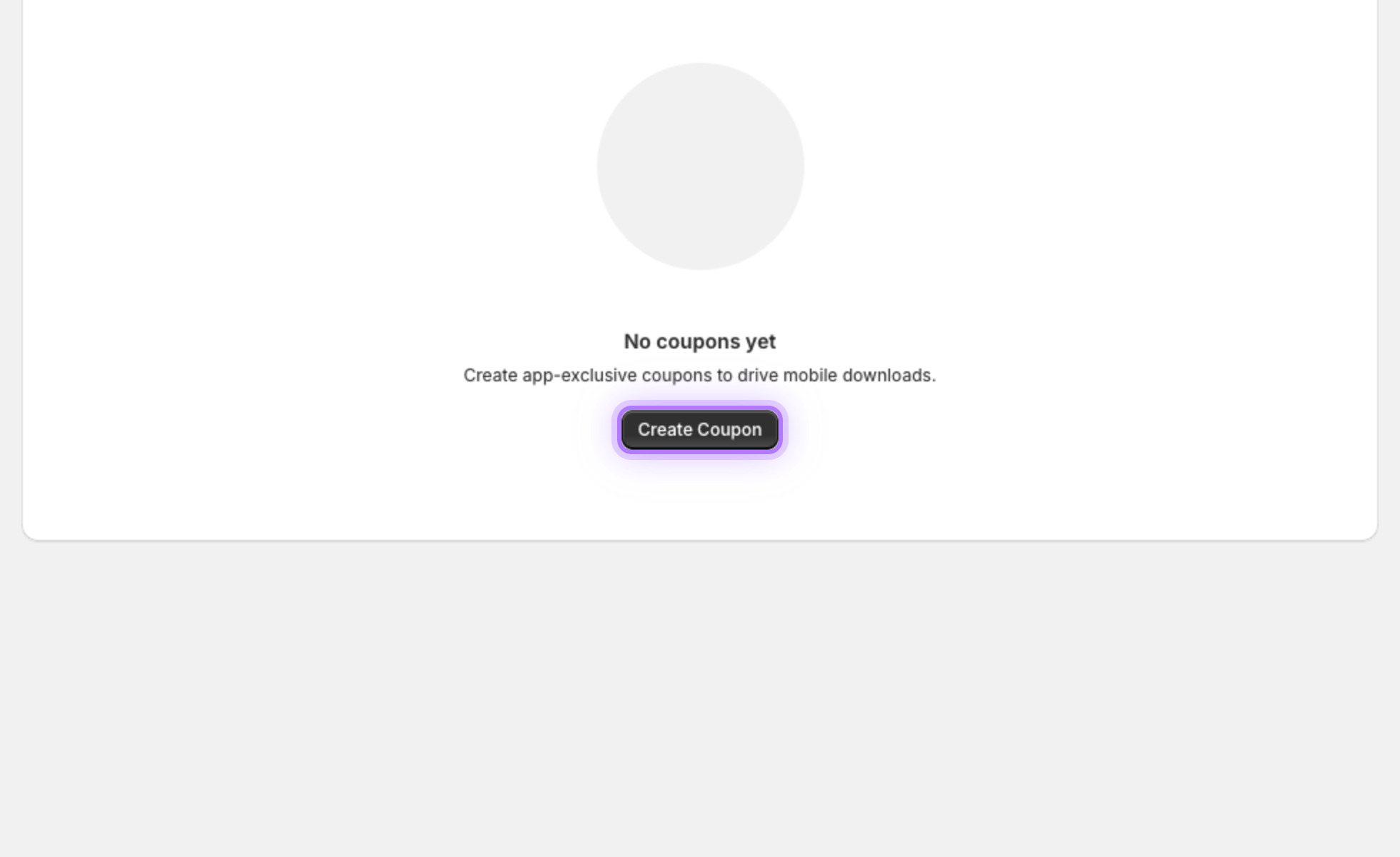
    Start a new coupon

    Open App Coupons from the channel to see your list of codes, then click Create to open the coupon form.
    Create coupon button
  2. 2

    Enter the code

    Type the code customers will enter at checkout, for example APPONLY20. Keep it short and memorable.
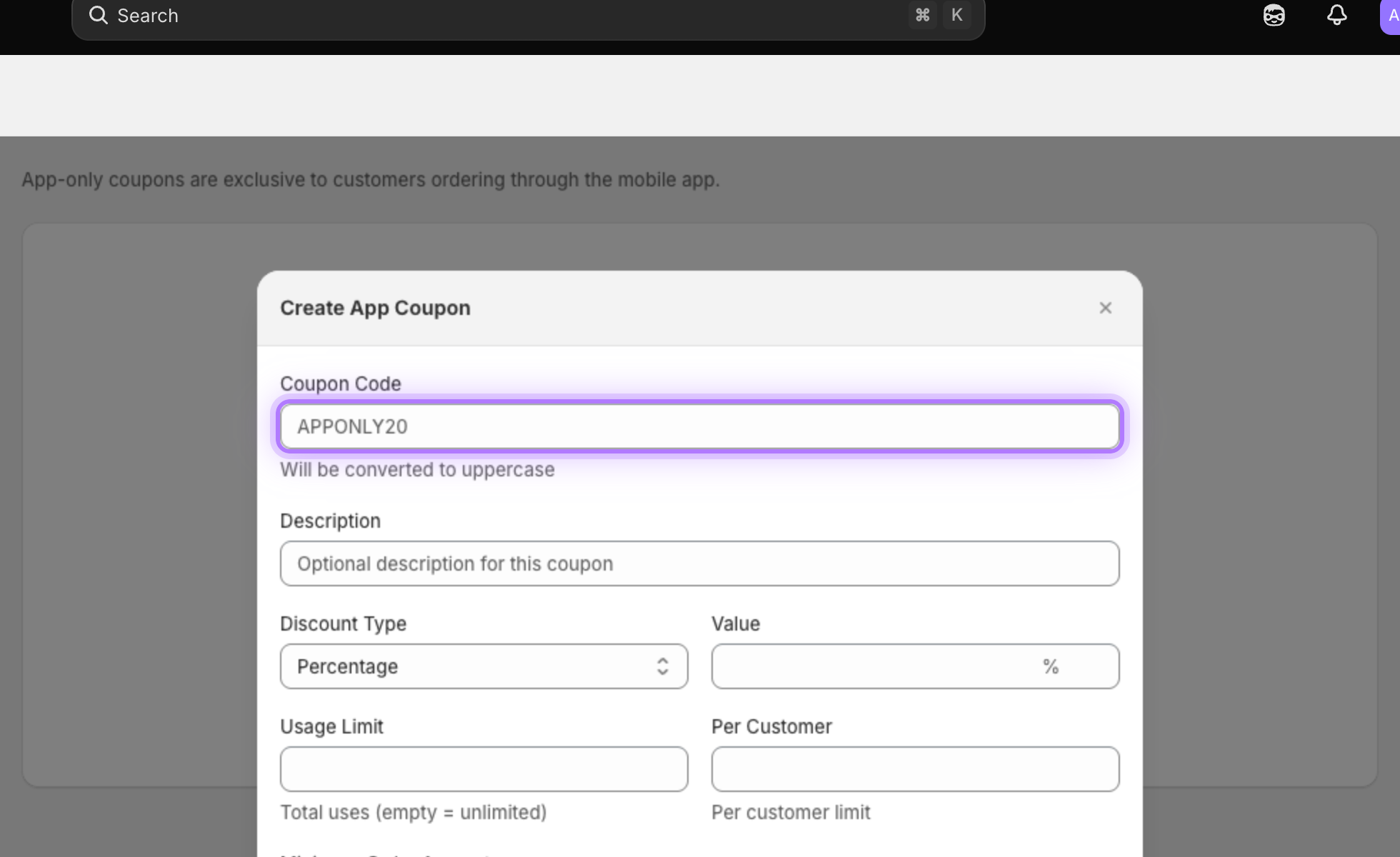
    Coupon code field
  3. 3

    Choose the discount type

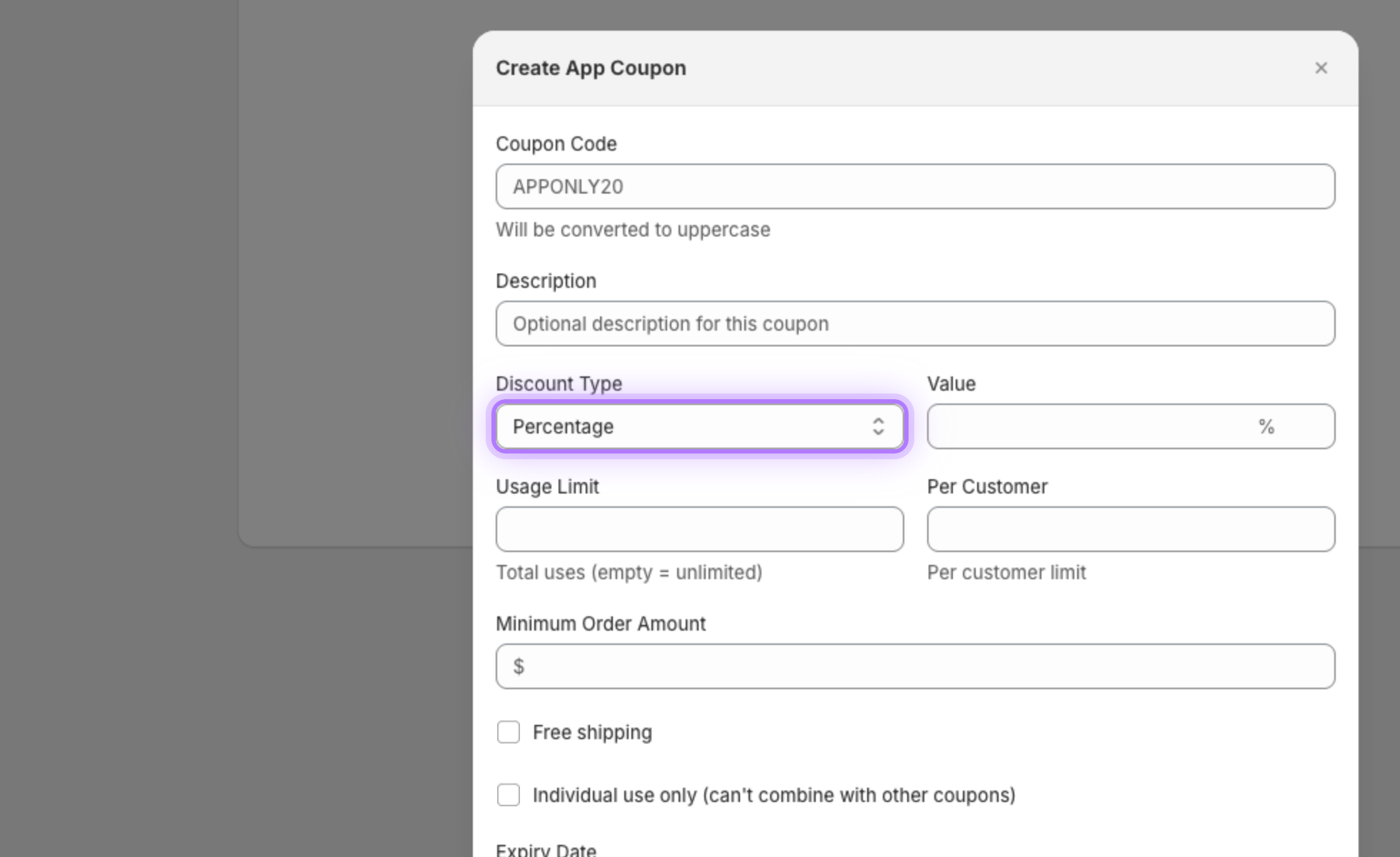
    Pick a percentage off or a fixed amount off the order.
    Discount type selector
  4. 4

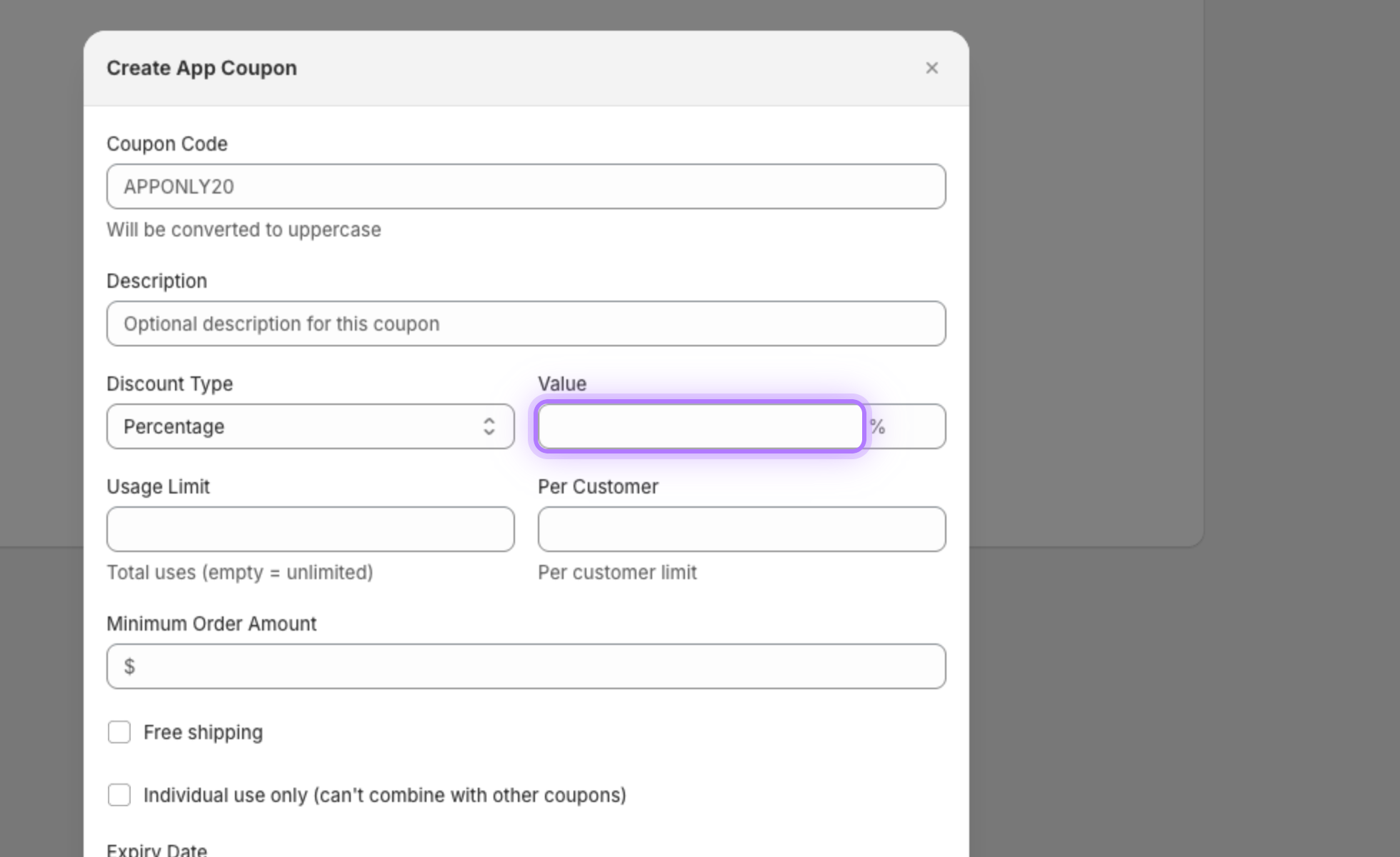
    Set the value

    Enter the discount value, for example 20 for twenty percent off.
    Discount value field
  5. 5

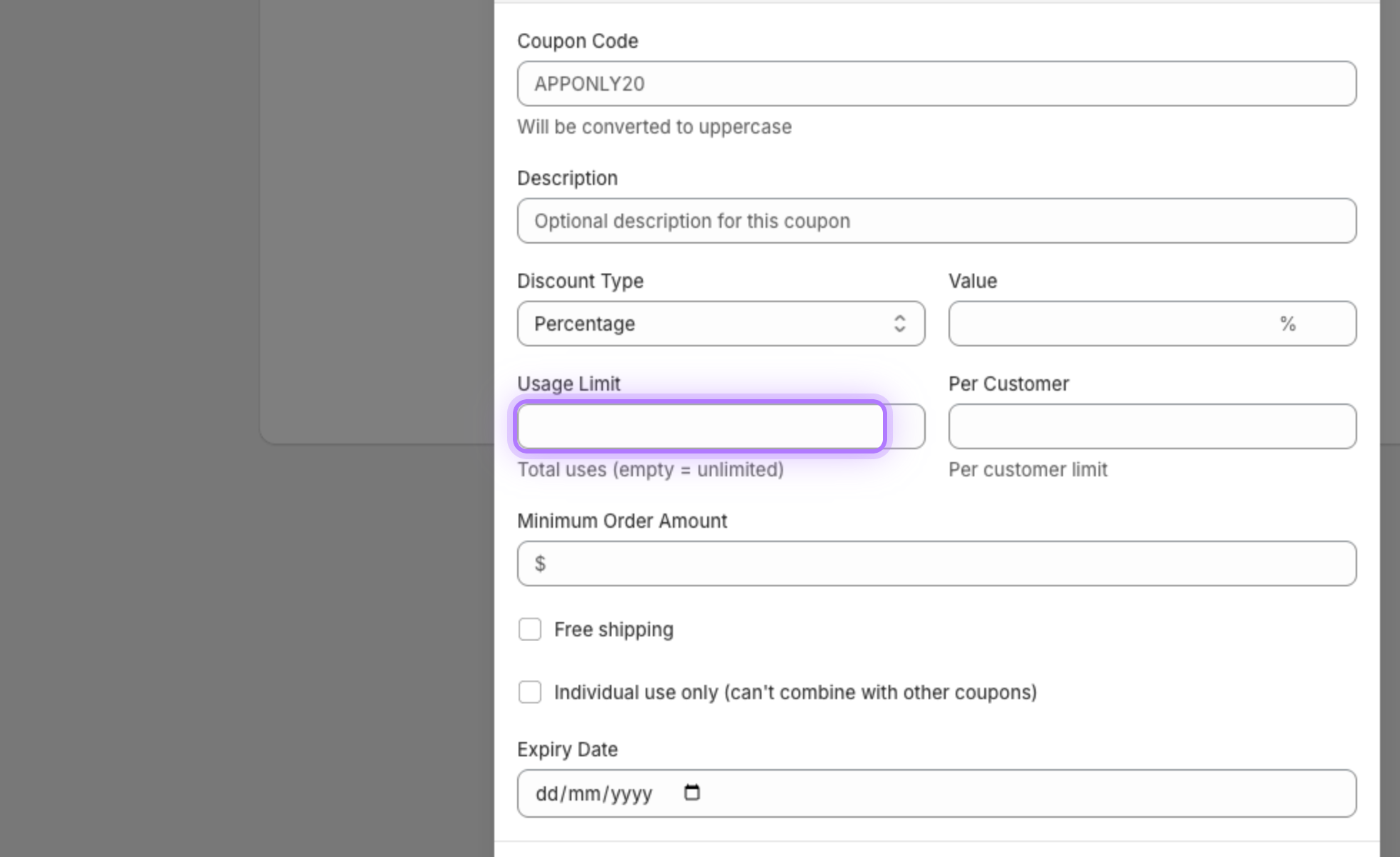
    Cap total usage

    Limit the total number of times the coupon can be used across all customers.
    Usage limit field
  6. 6

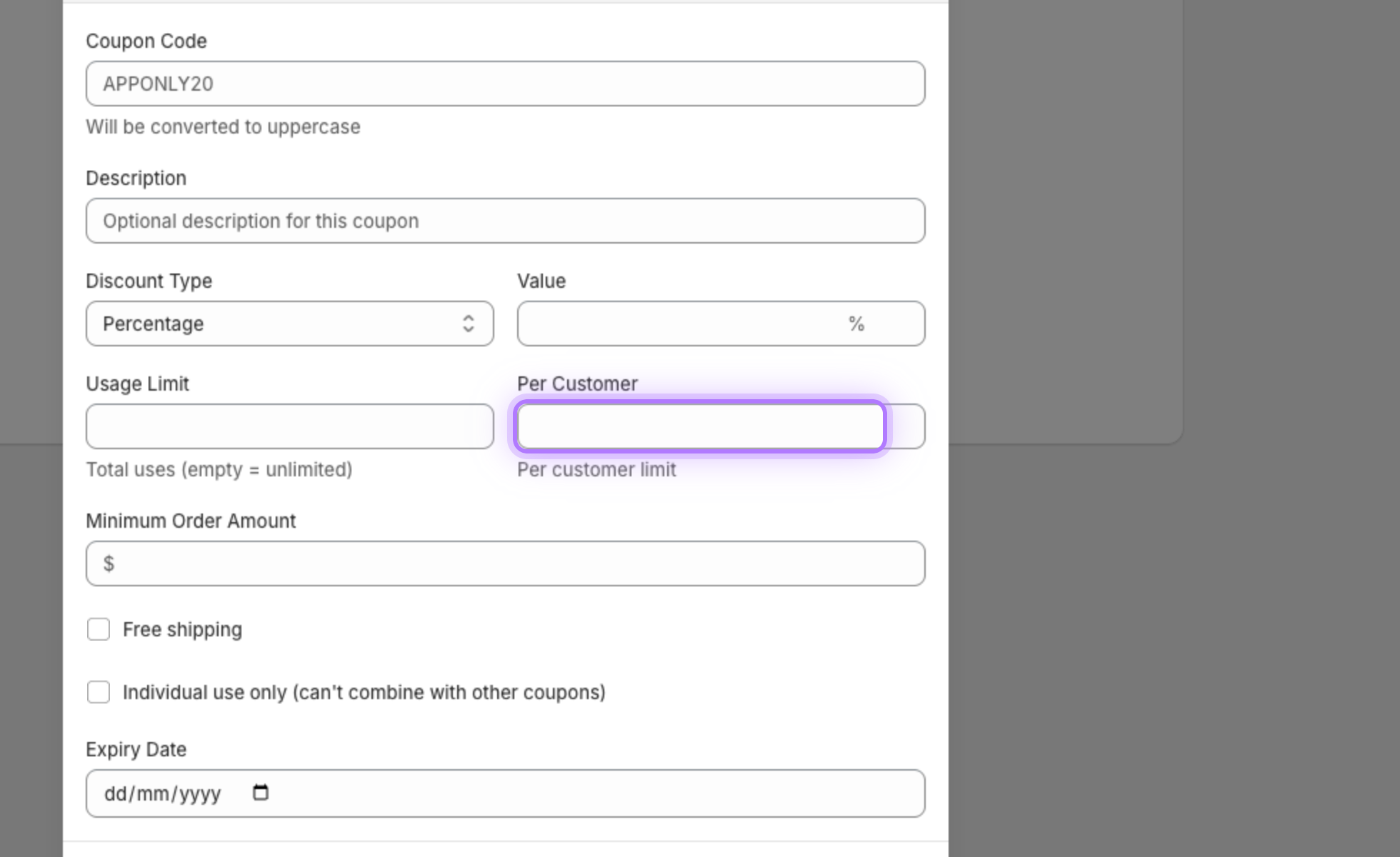
    Limit uses per customer

    Set how many times each individual customer can use the code, so one person cannot drain the offer.
    Per customer limit field
  7. 7

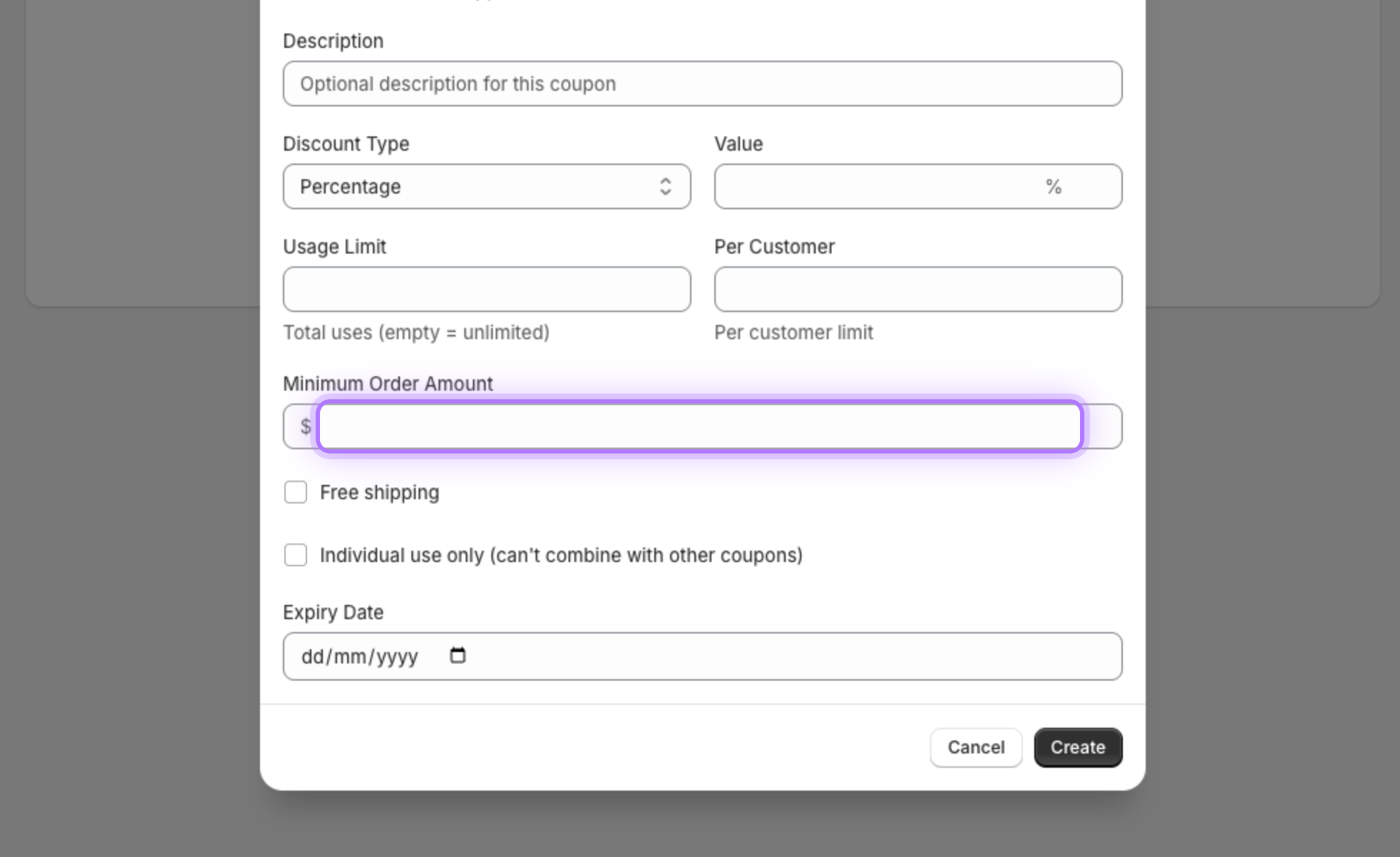
    Require a minimum order

    Set a minimum order amount to qualify, which is great for lifting your average order value.
    Minimum order field
  8. 8

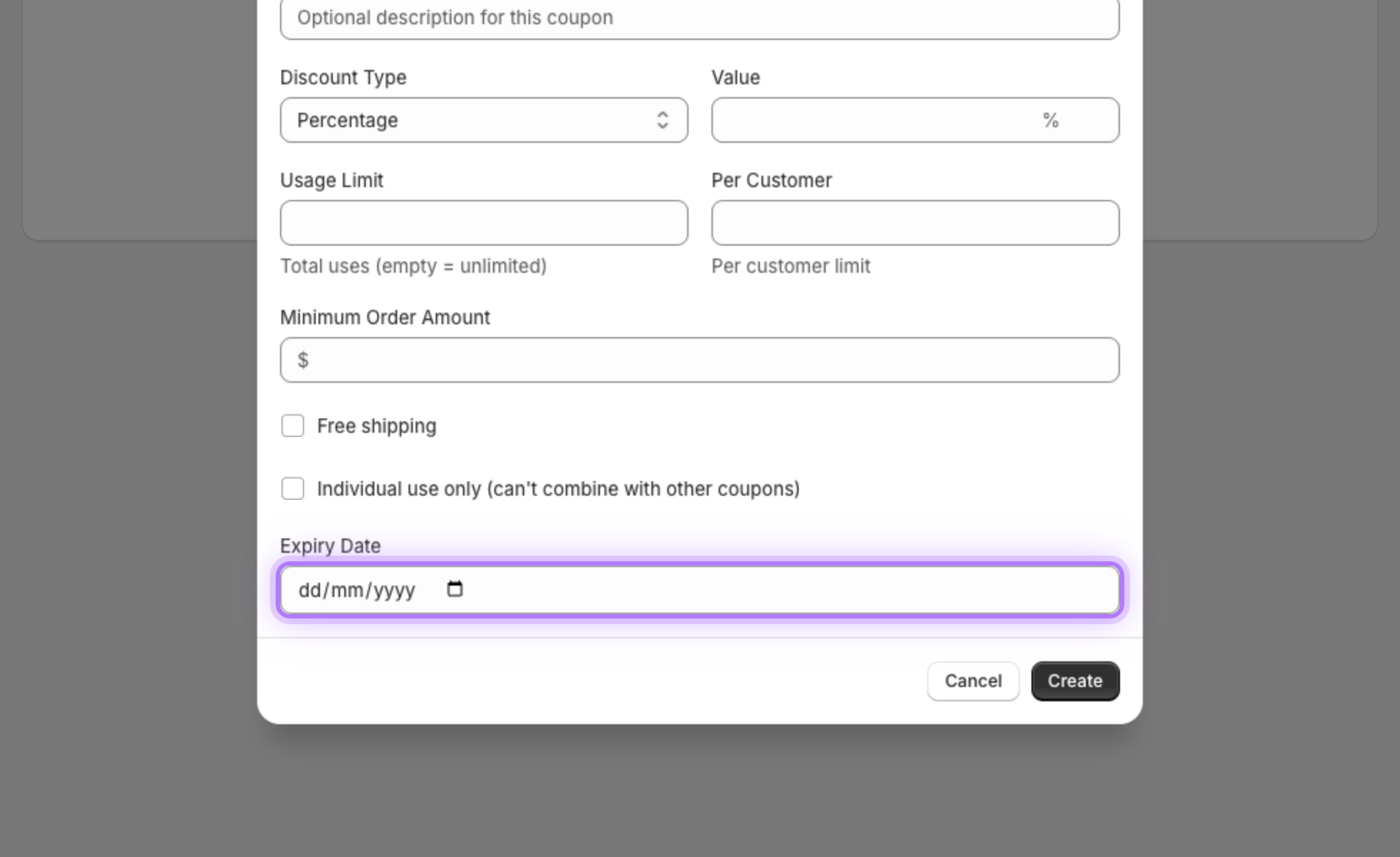
    Add an expiry date

    Set an expiry date to create urgency and drive customers to act now.
    Expiry date field
  9. 9

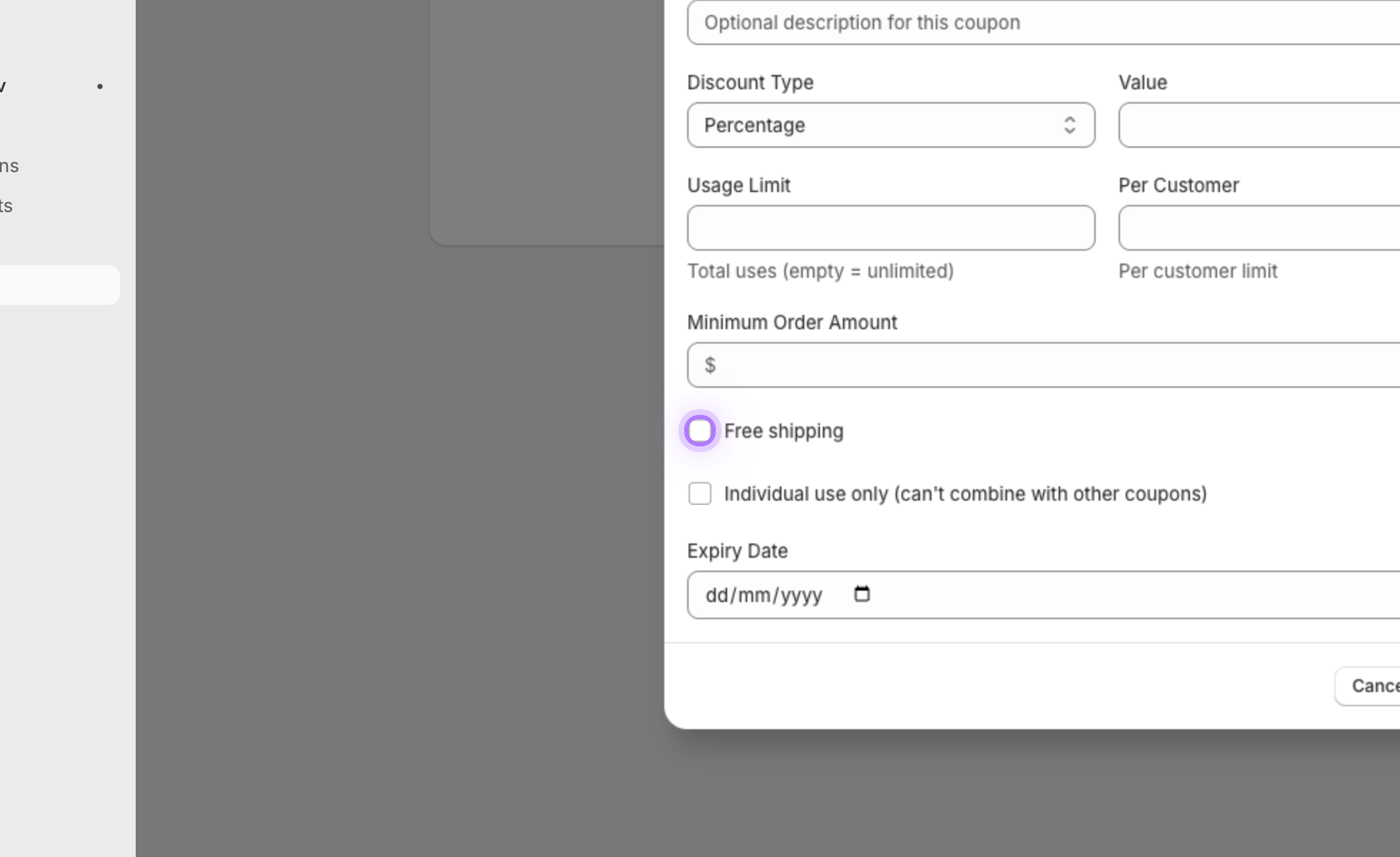
    Add free shipping (optional)

    Layer free shipping on top of the discount for an even stronger offer.
    Free shipping toggle
  10. 10

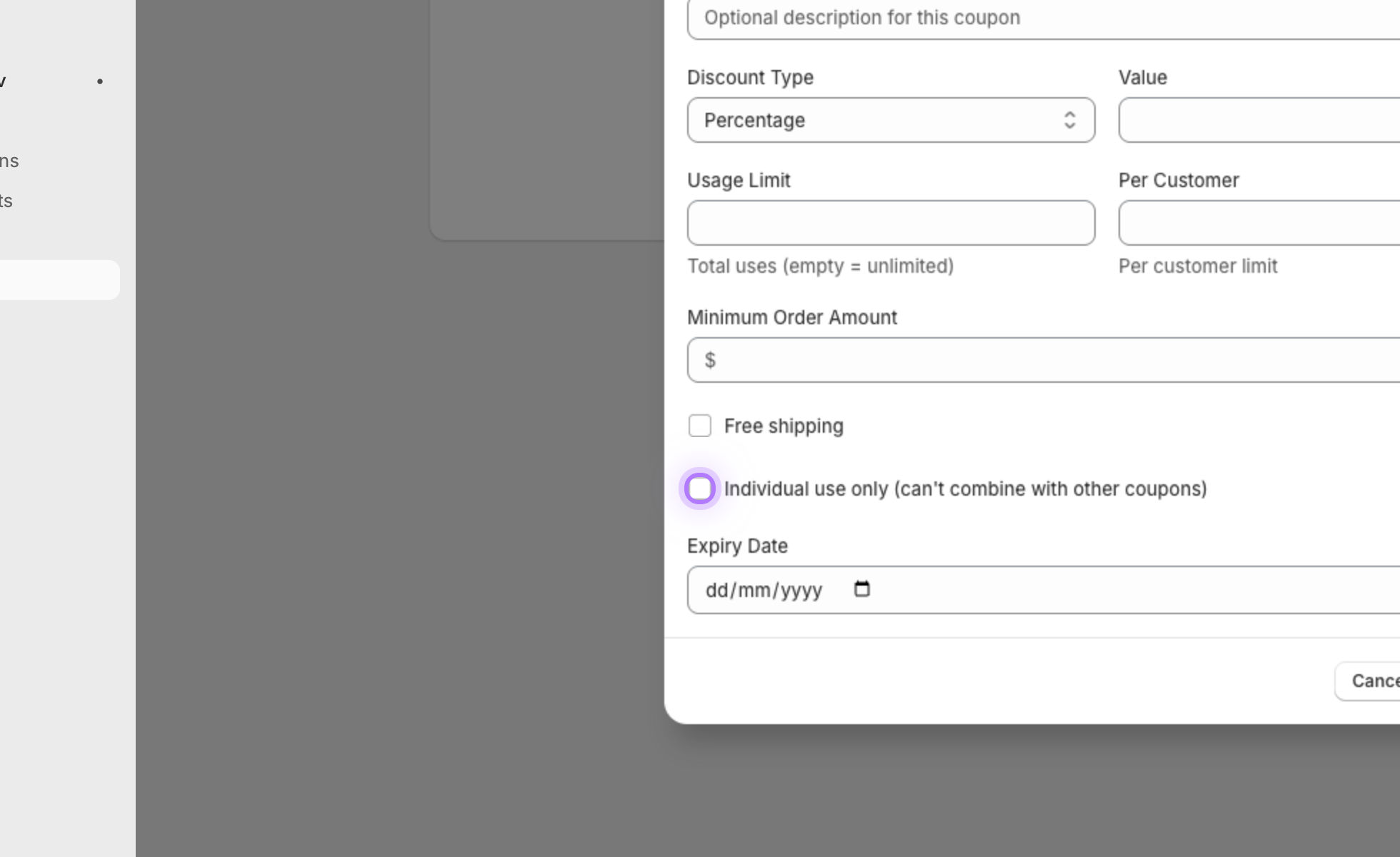
    Make it individual use (optional)

    Mark the coupon individual use only so it cannot be stacked with your other coupons, then click Create. It is live instantly, but only inside your app.
    Individual use toggle
App My Store

Want to hear more details?

Fill out the form and we will get back to you as soon as possible.

    By submitting this form you agree that we process the details you provide in order to respond to your enquiry. See our Privacy Policy.